System Access Request Guidance
For Supervisors and Staff Submitting Access Requests in Agiloft
Overview
System Access is requested and maintained in Agiloft. Supervisor are responsible for managing employees' access to Dartmouth's financial and administrative systems throughout their time at Dartmouth. This includes setting up access when someone joins Dartmouth, updating it when their role changes, and removing it promptly when they leave.
All system access is requested and managed through Agiloft, accessible at dartgo.org/Agiloft.
When to Submit a Request
There are three situations that require a system access request:
Situation |
Action Required |
|
New employee joining your team |
Submit an Initial Setup request before or on their start date |
|
Current employee changing roles or responsibilities |
Submit a Revision to update their existing access |
|
Employee leaving your team or Dartmouth |
Submit an End Access request on or before their last day |
⚠️ Off-boarding note: Removing system access when an employee departs is a security and compliance responsibility. Do not wait — submit the termination request on or before the employee's last day.
How to Submit a System Access Request
Step 1 — Open a New Request
-
Go to: Dartgo.org/Agiloft
-
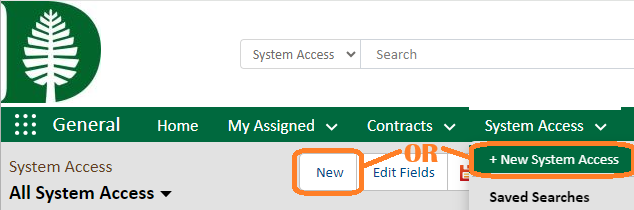
From the ribbon, select the dropdown arrow next to "System Access"
-
Select New System Access
-
or if in the System Access table
-
select New from Action bar above the table
-
A new System Access Request will open
Tip: As you navigate this form, help text is embedded at each field to help guide you
through the completion of this form. Simply hover over the field for helpful tips
for completing that field.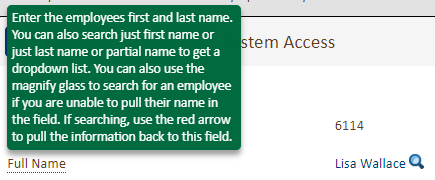
Step 2 - Find the Employee
In the Full Name field, begin typing the employee's name (First Name, Last Name) and select them from the list that appears.
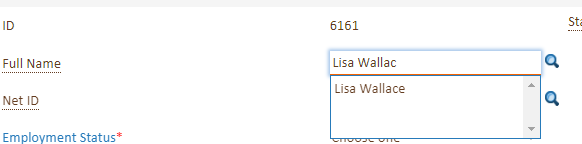
Alternatively, use the magnifying glass icon to search by name:
- Type the employee's name (first name, last name) in the search field and click Go
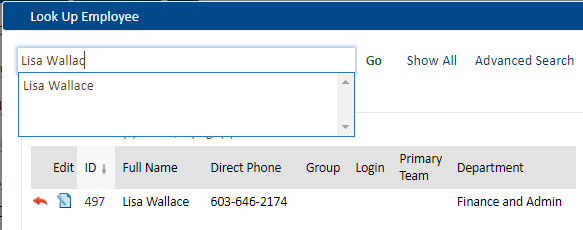
- After a moment, a list of matching employees will appear
- Click the red arrow to select a single employee
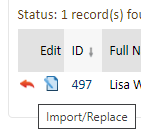
Tip: If your search returns no results, expand Search Options beneath the search field, select All Text Fields, and click Go again.
For a multiple value field use the check box to the left of the search results to select from the table the values to import back to the form.
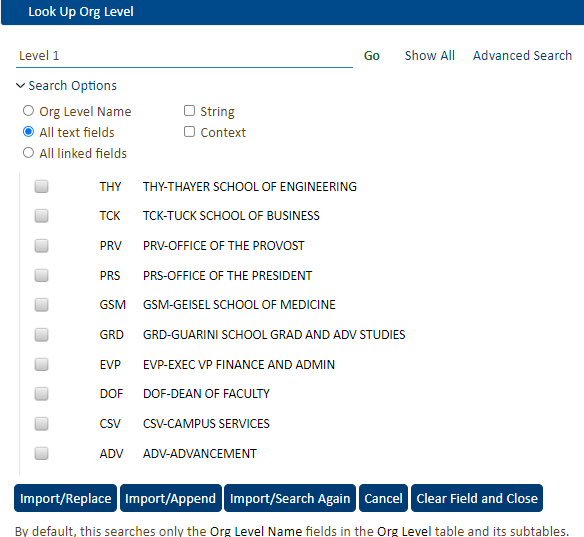
- Import/Replace - will import the selected options and replace any data previously in the field.
- Import/Append - will import the selected options and append the new data to the list of data previously in the field. (e.g. Your adding additional orgs to a persons responsibility, but do not want to remove the orgs that the individual already has access.)
Once the employee is selected, it will populate the employees Net ID, Department, and Divisions.
Step 3 — Select Employment Status
Choose the employee's employment status from the dropdown menu. This is important — the systems available to request will vary depending on employment type (e.g., full-time staff, student, temporary employee).
Tip: All required fields are denoted with blue text and a red asterisks (*).

Step 4 — Enter Access Dates
- Access Start Date — Enter the date access should begin (ideally the employee's first day)
- Access End Date — Required for students, temporary Dartmouth employees, outside agency temps and when terminating access for an employee leaving a position or Dartmouth.
Step 5 — Describe the Request
Under Access Description, select the type of request:
- Initial Setup — For a new employee who has never had access
- Revision to Existing Access — For a current employee whose role or responsibilities have changed
- Ending Access to Selected Systems — To remove access to specific systems only
- Ending All Access — To fully remove access when an employee is off-boarding
Then, in the Access Request Summary field, briefly describe the reason for the request (e.g., "New hire to Finance team — needs Oracle and OnBase access" or "Employee transferring to HR — remove Finance system access").
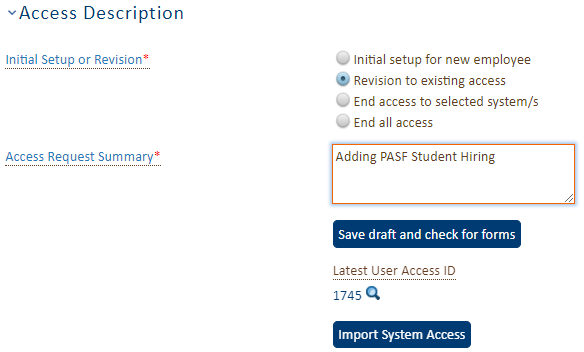
To copy an employee's access to a new employee or submitting a revised access request, click "Save draft and check for forms".
For an initial request of a new employee and use the magnifying glass to search for the existing request.
Step 6 — Copy an Existing Access Record (Optional)
If you are onboarding someone into a role that was previously held by another employee, or submitting a revision for a current employee, you can save time by importing an existing access record.
To copy access from a prior employee:
- Click Save Draft and Check for Forms
- Use the magnifying glass next to Latest User Access ID to search for the prior employee's access record
- Once found, click Import System Access — this will pull their system access into your new request
- Review each system carefully and adjust access to fit the new employee's responsibilities
For a revision to a current employee's access: The most recent active access record will populate automatically after you click Save Draft and Check for Forms.
Important: Always review imported access before submitting. Not every previous employee's access will be appropriate for the new employee.
Step 7 — Submit for Approval
- Select the appropriate Fiscal Officer or Designated Approver from the approver list
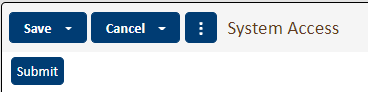
- Click Submit
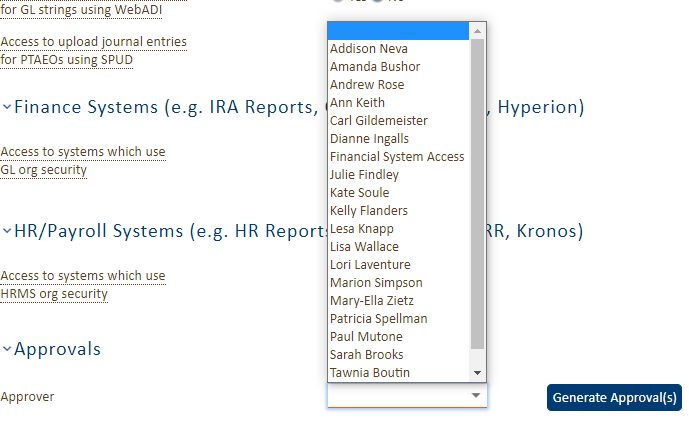
The form will save and return to the top of the form. Click "Submit"
How to View an Employee's Current System Access
Option 1: View Access on the Employee Record
- Go to the Employee Table in the left-hand navigation (under People)
- Search for the employee using the search bar
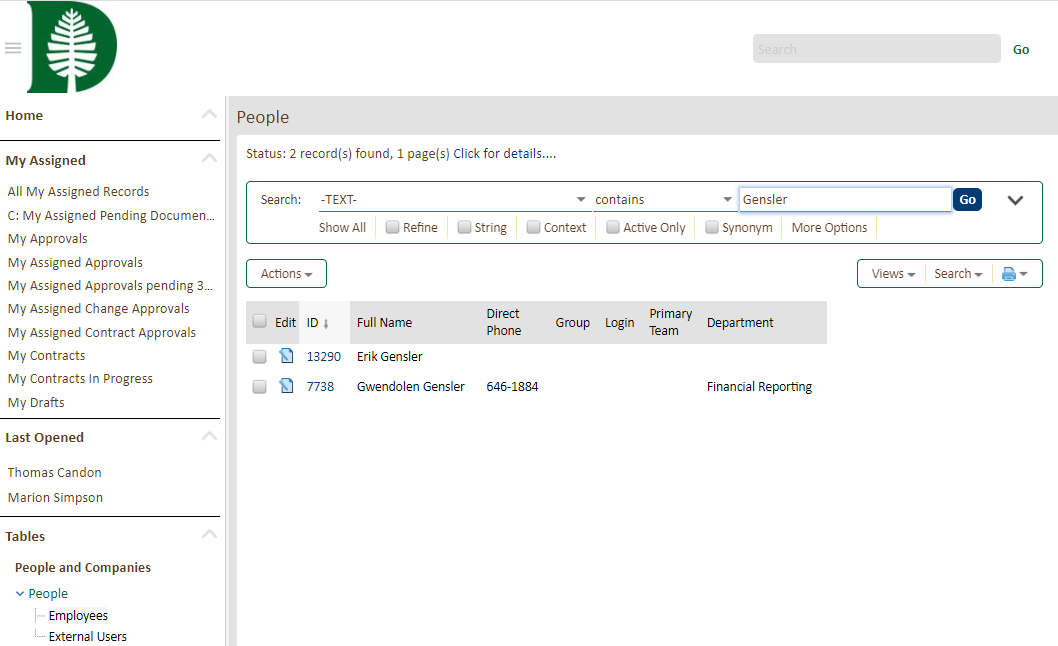
- Click the ID number next to their name to open their record
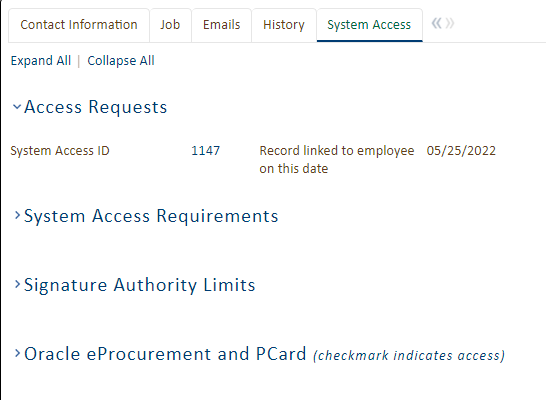
- Select the System Access tab
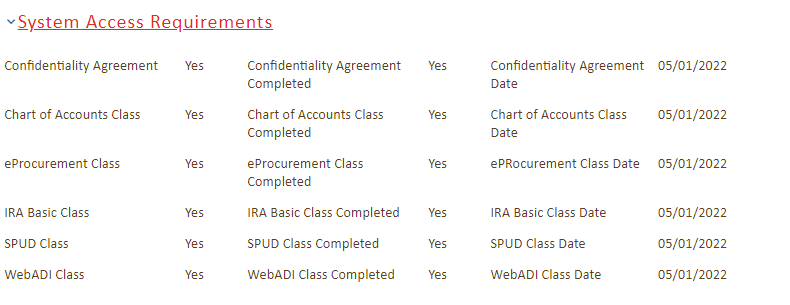
- Click any section header to expand and view their current access
Option 2 — Through the System Access Table
- Navigate to System Access in Agiloft
- Use the search bar to filter by Department, Division, or another field
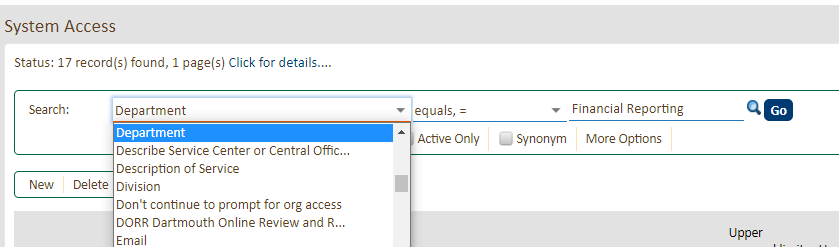
3. Hover over View to select from predefined reports
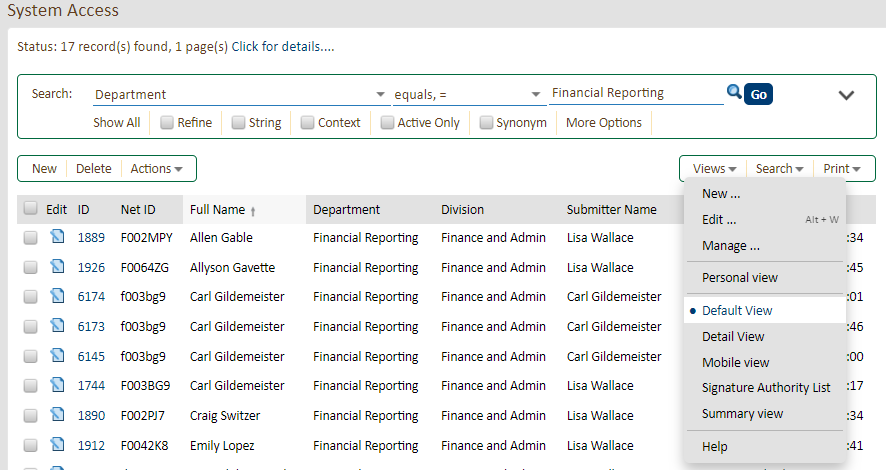
4. Click the ID number next to an employee's record to open it
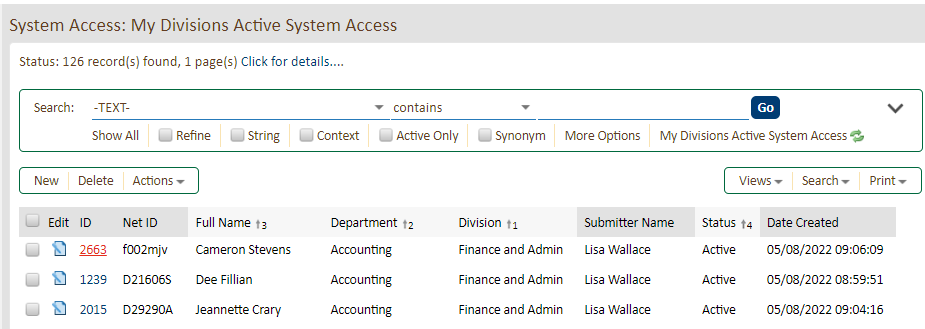
This option is useful when you want to compare access across multiple employees or review access by department.
Tips at a Glance
- Required fields are shown in blue text with a red asterisk (*)
- Hover over any field to see embedded help text explaining what to enter
- Submit new hire requests before or on the start date — don't wait until after they arrive
- Submit off-boarding requests on or before the last day — prompt removal is required
Have Questions?
Last Updated